How to convert PDF bank statements to Excel or CSV for accounting software
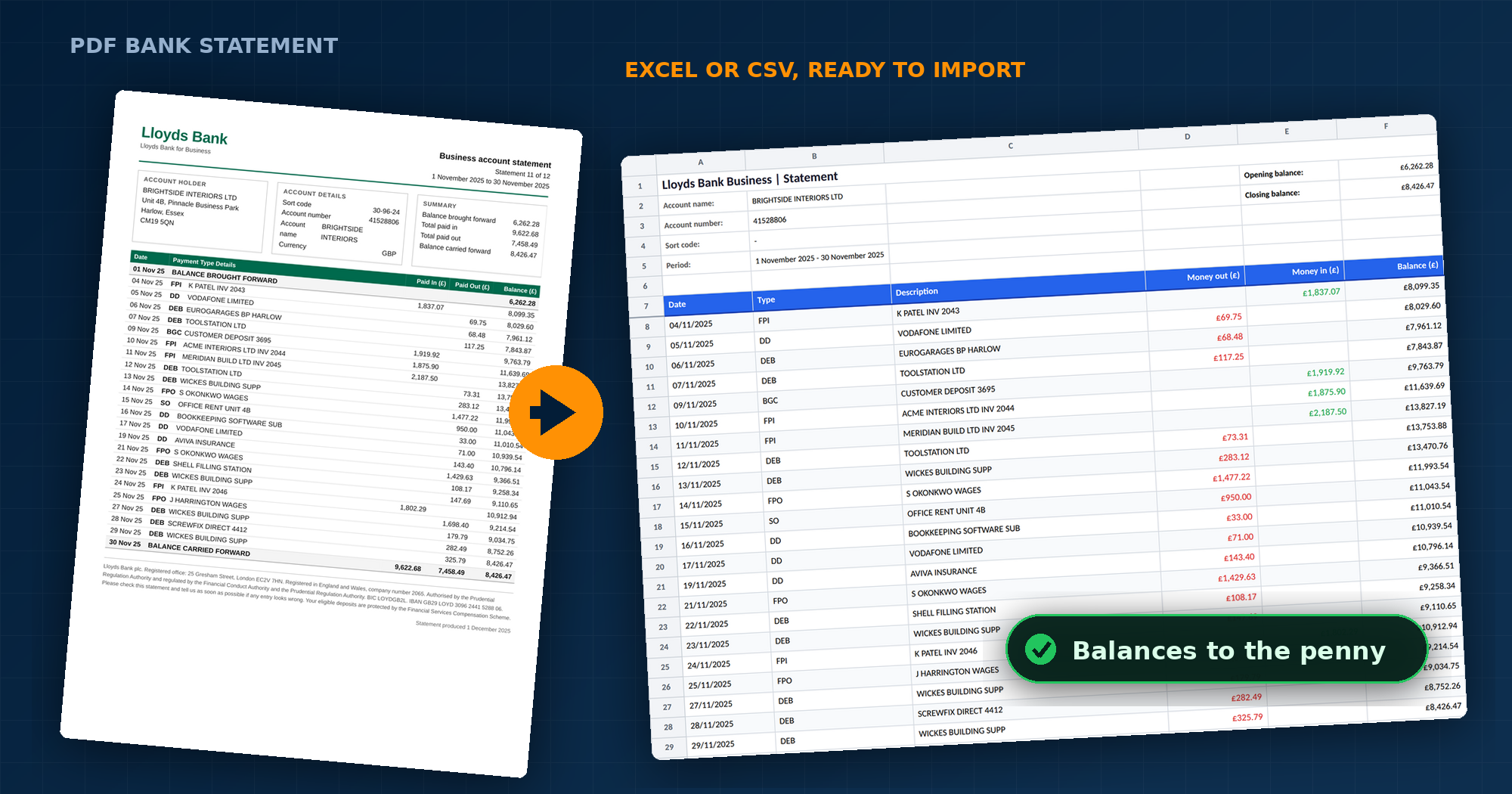
Every bookkeeping job starts the same way. A client sends over a folder of PDF statements, and before a single transaction can be categorised, that PDF file has to become rows and columns. Do it by hand and a year of trading is a full afternoon of manual data entry. Do it badly and the entry errors surface weeks later, in a VAT return that will not tie back to the bank.
This guide walks through how we convert bank statement PDFs to Excel or CSV in practice: what a good conversion actually looks like, how to check it before you trust it, and how to shape the final output so that Xero, QuickBooks, Sage or FreeAgent will accept it without complaining. It applies whether you are a sole trader preparing for Making Tax Digital, a landlord with three rental accounts, or a bookkeeper working through a client backlog.
Key takeaways
- A PDF has no table structure underneath, which is why generic PDF to Excel converters put amounts in the wrong column on bank statements.
- Use a converter with a parser for your specific bank, not a general document extractor.
- Always check the arithmetic: opening balance + money in − money out must equal the closing balance printed on the statement. If it does not, a row is missing.
- A structured Excel file (.xlsx) is for people to read; CSV is for software. Delete any account or period rows above the header line before importing.
- Xero, QuickBooks, Sage and FreeAgent each want a different column shape, and QuickBooks caps the file at 350 KB.
- Before uploading a client statement anywhere, check the operator on Companies House and the ICO register. That check is part of your own data protection obligations.
Why converting a bank statement PDF to Excel is harder than it looks
A PDF has no idea it contains a table. What you see as neat columns is, underneath, a scattering of text fragments positioned on a page. There is no cell, no row, no column, only coordinates. That is why general PDF to Excel converters so often fail to extract tables cleanly from bank statement data: you get merged cells where the description has swallowed the amount, a two-line payee turned into two rows, and every date arriving as text that Excel refuses to sort.
Bank statements add their own difficulties on top of ordinary tabular data:
- Every issuer prints a different layout. Lloyds uses a type code prefix and separate paid in and paid out columns. Starling uses one signed amount column and ISO dates. Revolut, Monzo, Tide and Wise each do something else again. A converter has to handle bank formats individually, not generically.
- Blank cells vanish. When a row has money out but no money in, the empty cell simply is not there in the extracted text, so naive data extraction cannot tell which column an amount belonged to.
- Descriptions wrap. One transaction can span two, three or four printed lines.
- Credit cards invert the sign. On a current account a payment reduces the balance. On a credit card statement it reduces what you owe.
- Some statements are scans. A photographed or scanned PDF has no text layer at all, so optical character recognition has to run before any of the complex data on the page can be read. The same applies if you need to convert scanned PDFs of older statements from an archive box.
What a good converted bank statement looks like in an Excel spreadsheet
Before you pick a converter tool, it helps to know what you are aiming for. A converted statement is fit for bookkeeping when all five of these are true:
- One row per transaction. No wrapped descriptions split across rows, no blank filler rows.
- Amounts in their own columns. Either separate money out and money in columns, or a single signed amount column. Never both mixed together, and never with a pound sign or a thousands comma stuck inside the number.
- A running balance you can check. This is what makes the Excel spreadsheet auditable rather than merely tidy.
- Consistent date format. Real dates, in one format, that sort correctly.
- Every transaction present. Not most of them. All of them.
That last point is the one that matters, and it is the one you cannot verify by glancing at the spreadsheet. Which brings us to the acid test.
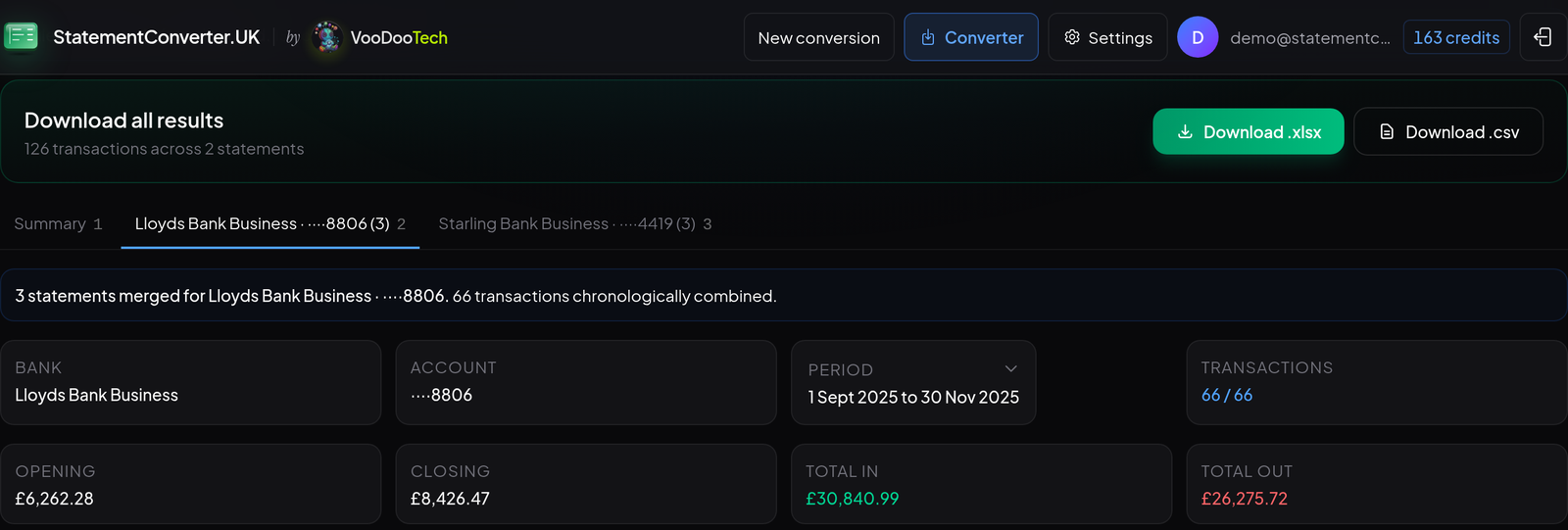
The acid test: opening balance, plus everything that came in, minus everything that went out, should equal the closing balance printed on the statement. If it does not, a row is missing or an amount landed in the wrong column. Nothing else you do with the file matters until that arithmetic works.
Method 1: convert PDF to Excel for free, with Power Query or copy-paste
For a single, tidy, text-based statement this is perfectly reasonable, and you can convert PDF to Excel for free with software you already own.
If you have Microsoft Excel as part of Microsoft 365 for Windows, it can read a PDF file into Excel directly. Go to Data, then Get Data, From File, From PDF. Power Query will offer you the PDF tables it thinks it has found, and you pick the one that holds your transactions. On a simple one-page statement, converting a PDF this way often works well. On a multi-page statement it usually finds a separate table per page, sometimes several per page, and you are left appending queries and repairing headers by hand.
The copy-paste alternative is to select the transaction block in your PDF reader, paste it into a spreadsheet, then use Data then Text to Columns to split it up. Expect to spend time on dates that arrive as text, amounts that arrive with stray characters, and wrapped descriptions that need rejoining. Adobe Acrobat online offers a free PDF to Excel converter that does much the same job in the browser, with the same caveat: it is built for generic documents, not for bank statement layouts.
Converting an online PDF to a spreadsheet with free web tools
Dozens of services convert spreadsheets online in the browser, and nearly all of them work the same way: they look for rectangles that resemble tables and pour them into a sheet. Fine for a catalogue or a report. On a statement they usually go wrong in the one column that matters, the amount. They will produce Excel files in seconds, but speed is not the problem you have; a structured Excel file whose columns are right is.
If you do want to convert your PDF this way, do it on a statement you can check, and run the balance test on the result before you convert your PDF bank statements in any volume.

Manual conversion stops being sensible at roughly the point where you are doing it more than once, and the error rate on hand-keyed financial data is not zero.
| By hand in Excel | Specialist bank statement converter | |
|---|---|---|
| Cost | Free with software you own | Roughly 1p to 6p per page |
| One statement | 10 to 40 minutes | Seconds |
| Twelve months, two accounts | Most of a working day | One batch upload |
| Knows which column an amount belongs in | You decide, row by row | Yes, from the bank's own layout |
| Scanned statements | Retype from scratch | Only if the tool includes OCR |
| Tells you a row is missing | Only if you build the check yourself | Yes, if it shows the balance arithmetic |
| Merges months into one ledger | Manual copy and paste | Automatic, grouped by account |
Where each method earns its keep. For one clean statement a year, do it by hand. Past that, the arithmetic changes.
Method 2: use a bank statement converter built for UK bank formats
A converter built specifically for bank statements takes a different approach to a general PDF to Excel converter. Instead of guessing at table shapes, it identifies the issuer first and then applies a parser written for that bank's layout. That is how it knows a lone amount on a Lloyds row belongs in money out rather than money in, and it is why a specialist tool adapts to different layouts that a generic extractor treats identically.
The walkthrough below uses StatementConverter.UK, a UK-operated service with dedicated parsers for more than twenty UK banks. The steps generalise to any decent converter, and step four applies whatever you use.
Which UK banks can be converted?
Coverage is the first thing to check, because a parser written for your bank is the difference between a clean extraction and a spreadsheet you have to repair. At the time of writing, dedicated parsers exist for HSBC, Barclays, NatWest, RBS, Ulster Bank, Lloyds Bank, Halifax, Bank of Scotland, Santander, Nationwide, Starling, Monzo, Revolut, TSB, The Co-operative Bank, Virgin Money, Metro Bank, Tide, Wise, American Express and Capital on Tap, with business and personal variants handled separately where the layouts differ. Credit card statements from the same issuers are treated as their own format, because the sign convention flips.
If your bank is not on the list, a generic parser still attempts the extraction, and the balance check in step four tells you immediately whether to trust the result.
The tool used in this walkthrough
UK operated and ICO registered, with parsers written for more than twenty UK banks. Every conversion shows you the balance arithmetic, so you can see the extraction is complete before you export a single row. Twenty free pages, no card, so you can test it on your own statements first.
Step 1: start from the bank's own PDF
Download the statement from online banking rather than printing a transaction list to PDF format or photographing it. A bank-issued statement carries the opening and closing balances, the statement period, the sort code and the account number. Without the printed balances there is nothing to check the conversion against, which loses you the acid test entirely.
Step 2: upload your PDF
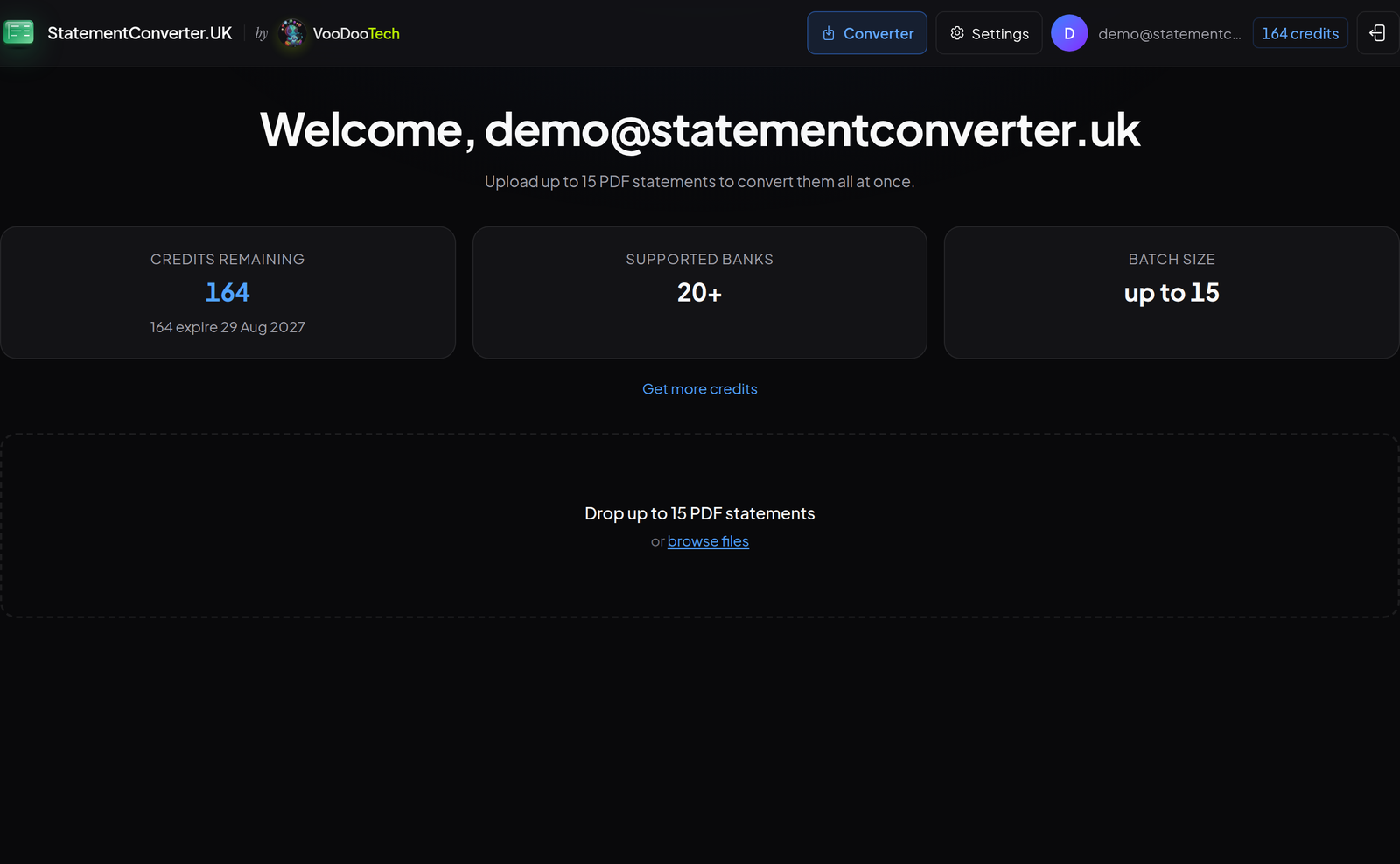
To convert your bank statement PDF, drag it onto the drop area or browse for it. There is no software to install and no bank login involved at any point. A legitimate online tool works on statements you already hold; if any PDF converter asks for your online banking credentials, close the tab.
Step 3: let it detect the bank

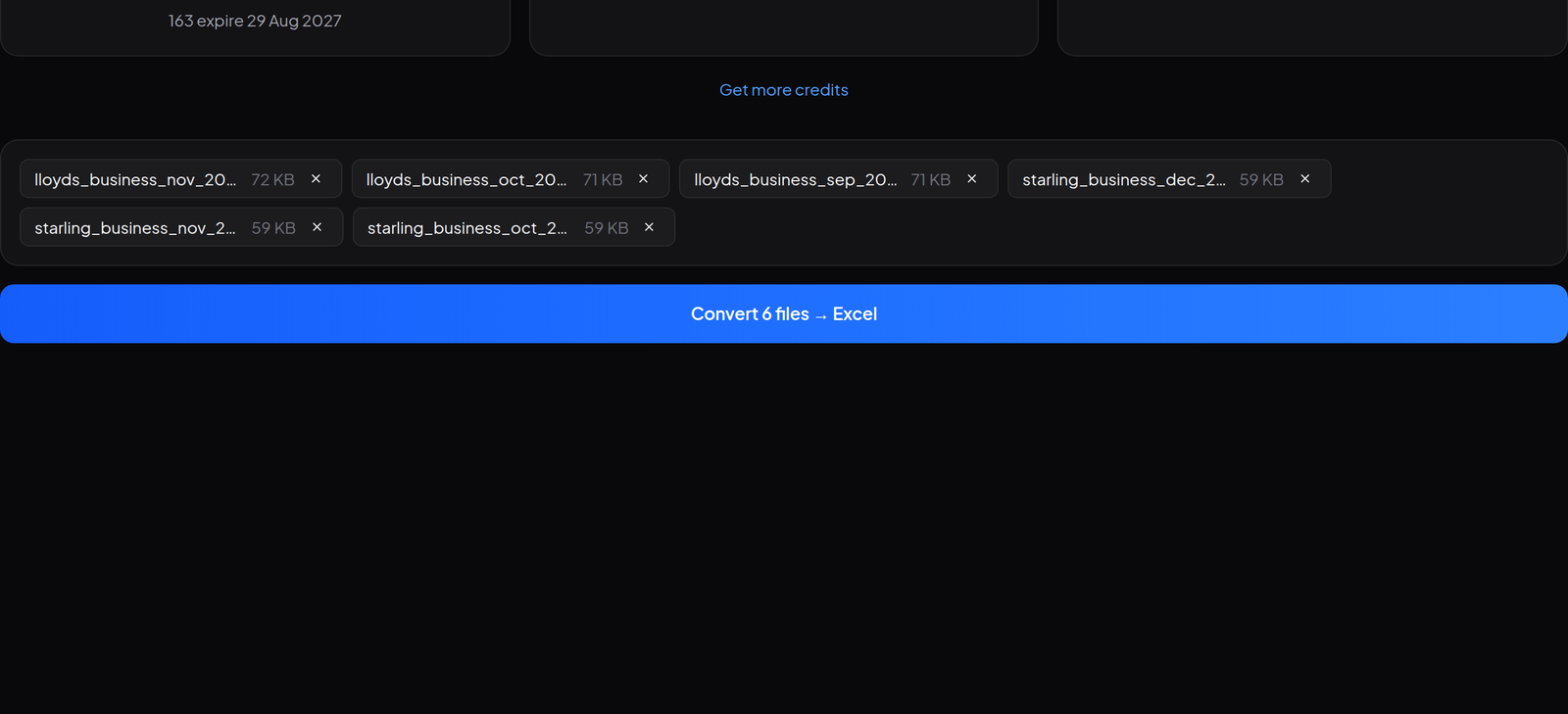
You are not asked which bank the statement came from. The tool reads the document and works it out, then routes it to the matching parser. That detection is deliberately conservative: identifying a statement as Lloyds because the payee list happens to mention a Lloyds direct debit would be a serious error, so recognition anchors on issuer-level evidence such as the BIC, the IBAN prefix or the registered legal entity in the statement footer.
No converter handles statements from any bank equally well. What separates a good one is that it tells you which parser it used and shows you the result of the arithmetic, so you can see for yourself whether it did accurately convert the document.
Step 4: check the balance maths before anything else
This is the step almost every guide skips, and it is the only one that tells you whether the conversion can be trusted.
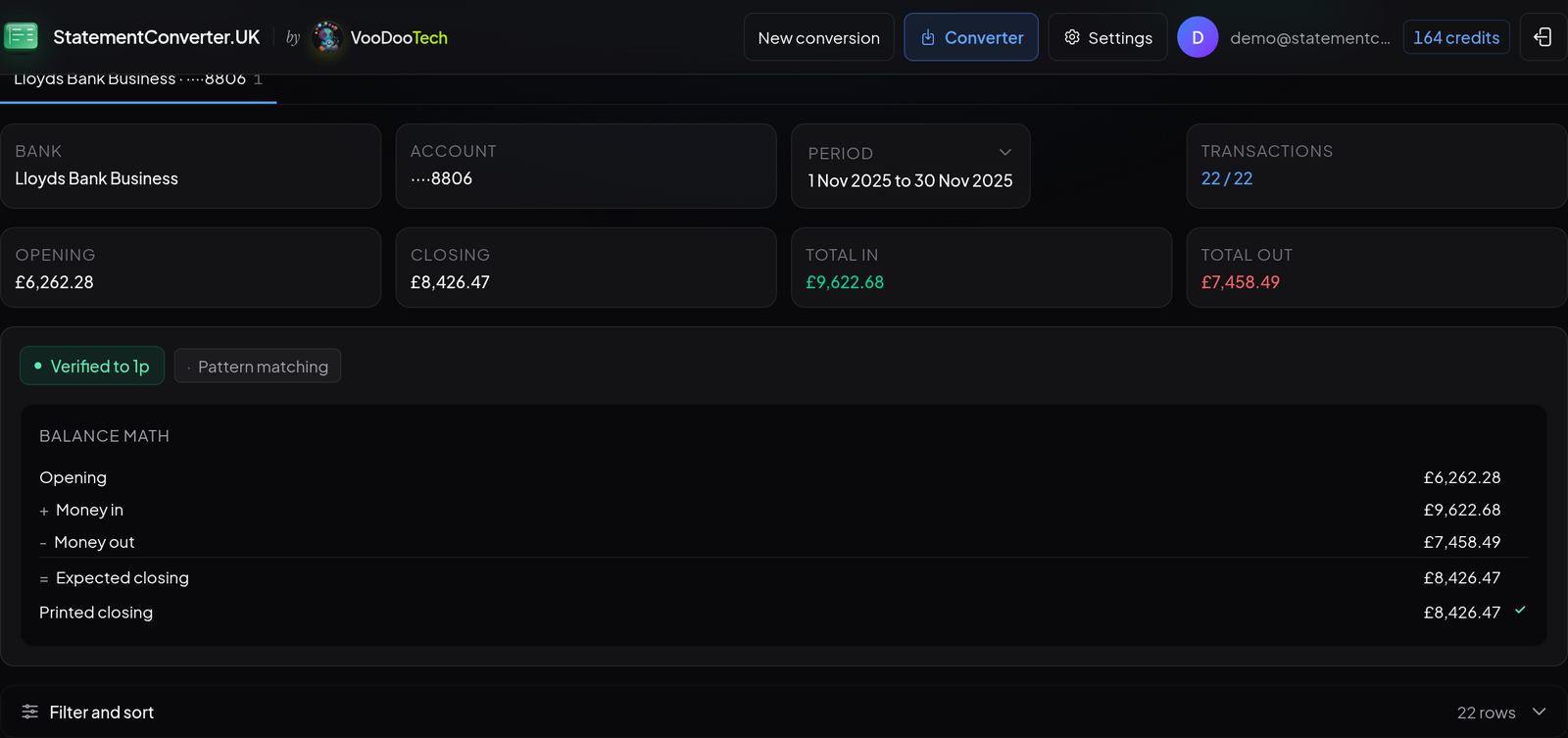
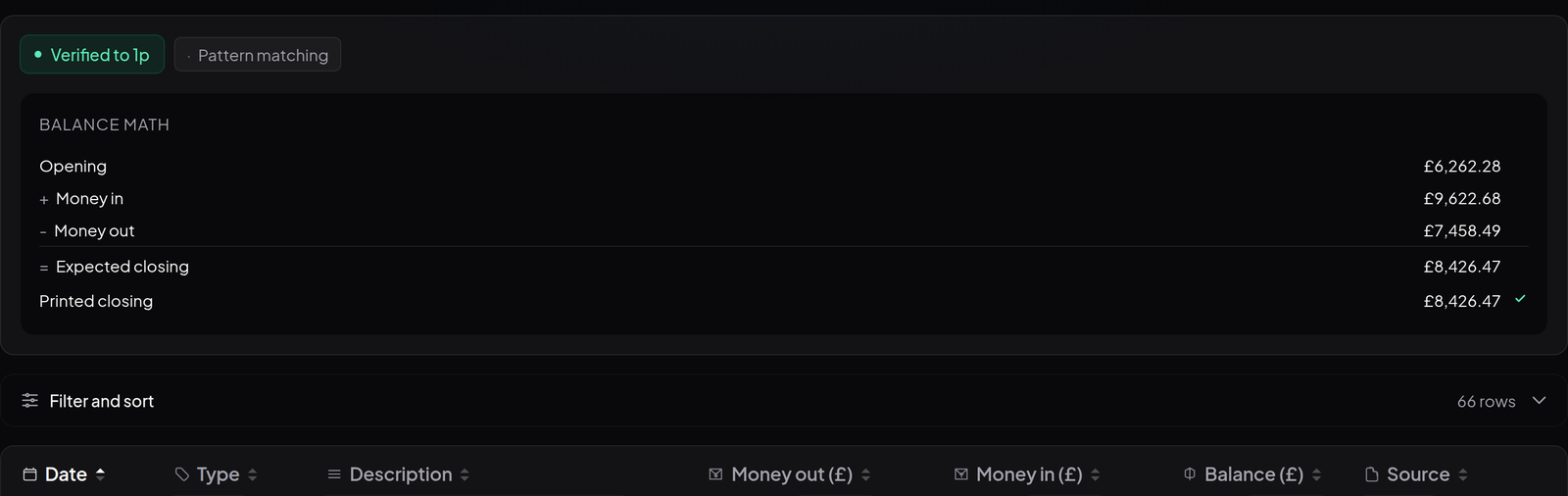
If your converter does not show you this, do it yourself: put the opening balance in a cell, add a SUM of the money in column, subtract a SUM of the money out column, and compare the result to the closing balance on the statement. Two minutes now saves an afternoon of hunting a £43.10 discrepancy in March.
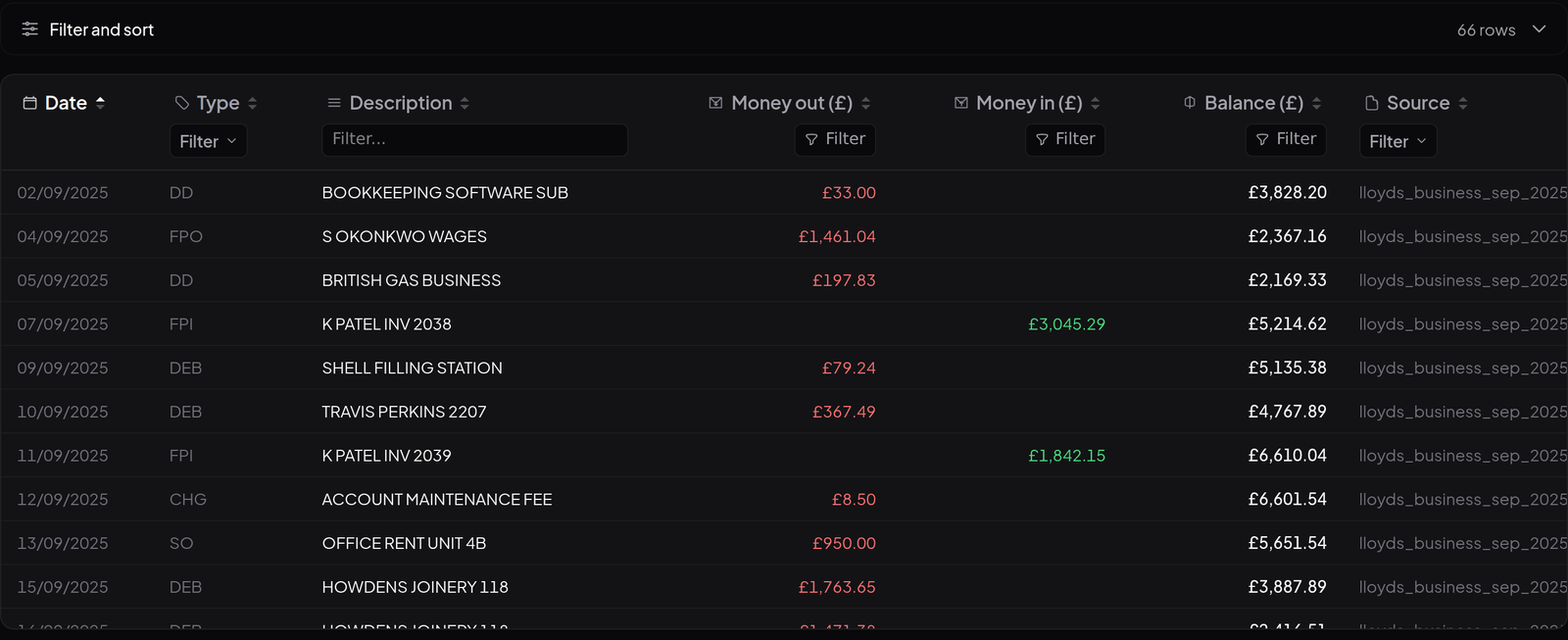
Step 5: review, filter and sort before you download
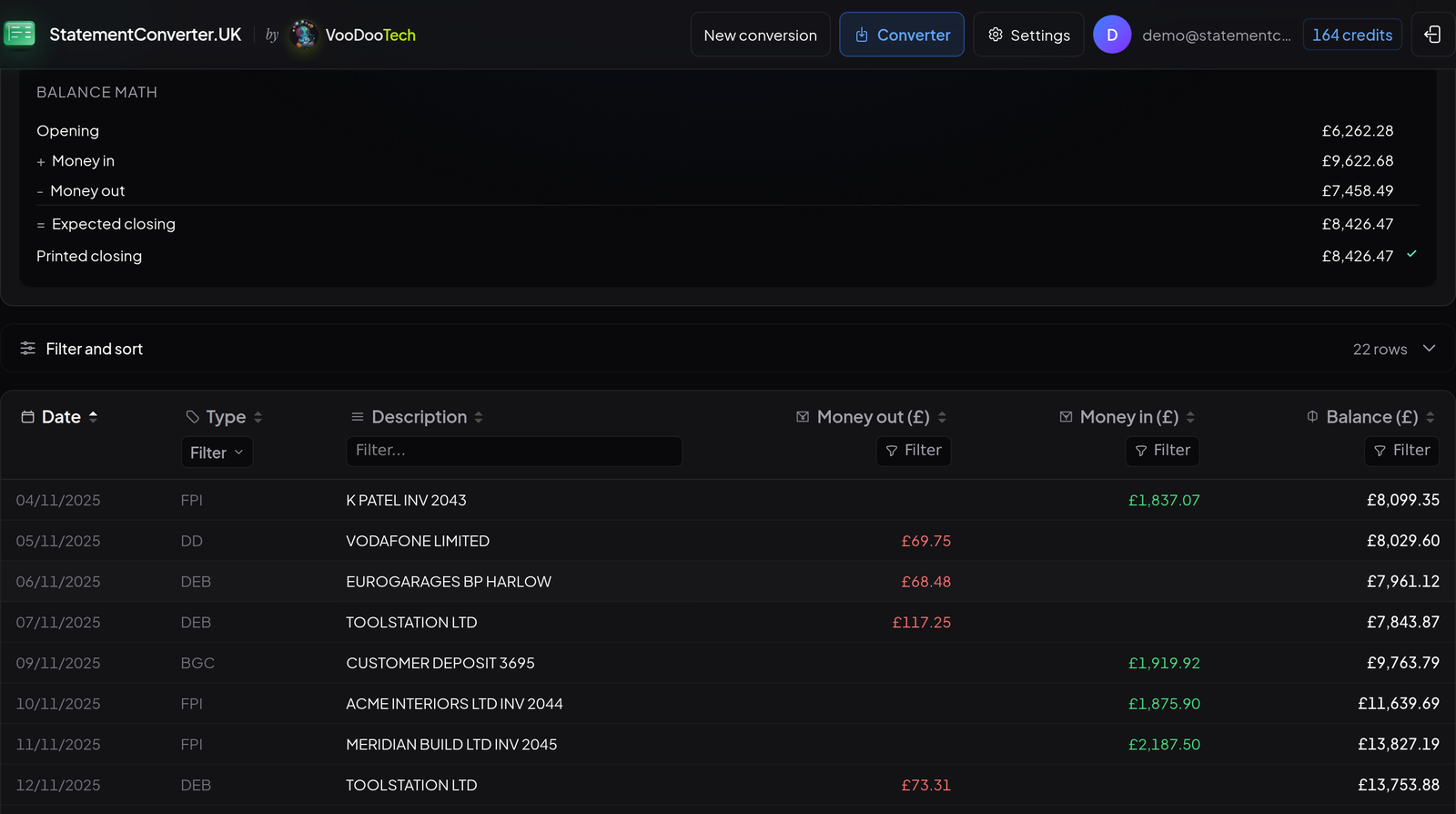
Reviewing on screen beats reviewing in a spreadsheet, because you can still see what the source looked like. Sort by amount to surface the largest items, filter by type code to isolate direct debits, or search the description column for a supplier you are chasing.
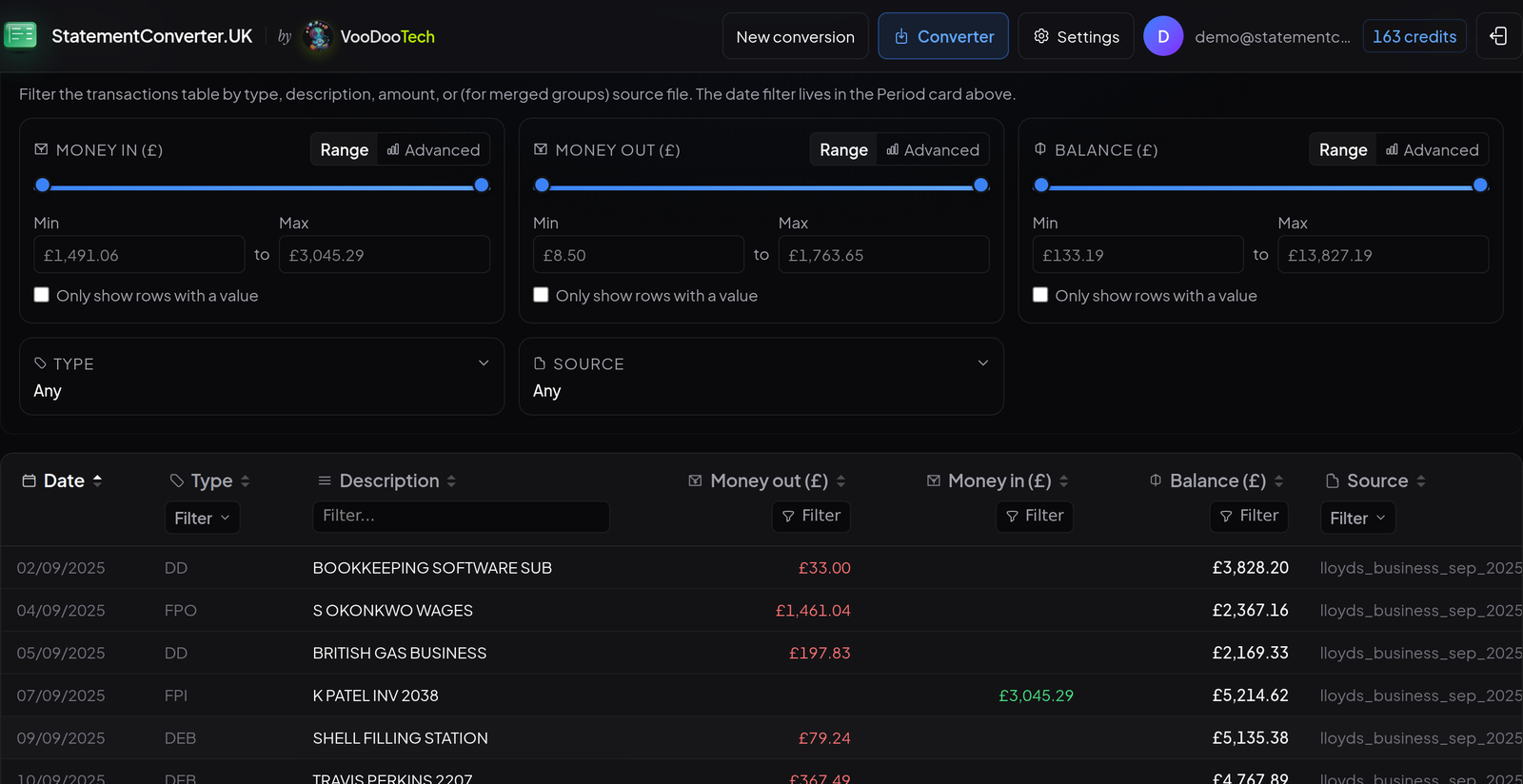
Step 6: convert your bank statement PDF to Excel or CSV
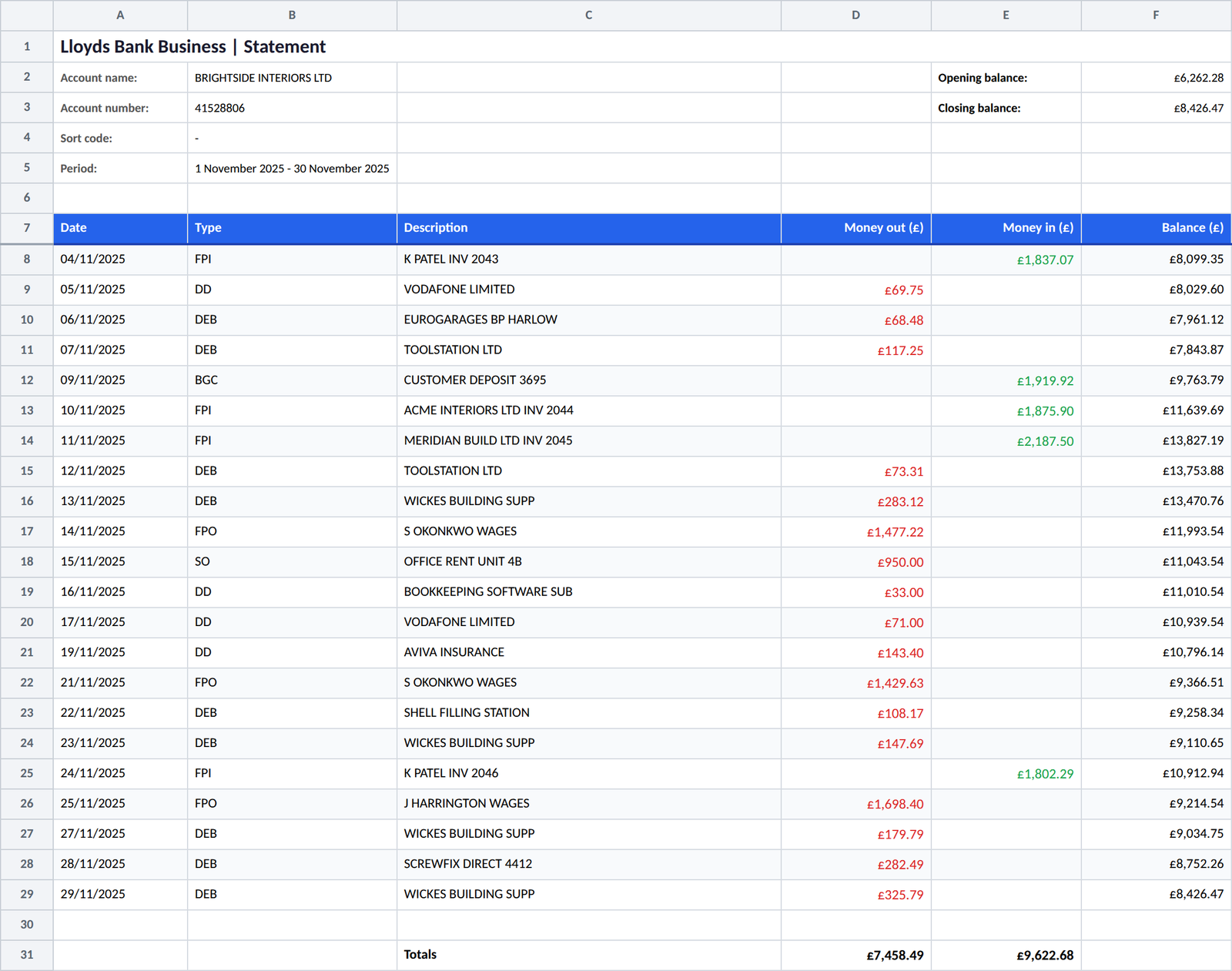
Take the editable Excel file when a human is going to read the data, and the CSV, short for comma-separated values, when software is going to read it. Modern spreadsheets use the .xlsx format rather than the older .xls, and either is fine for a person. The distinction that matters is the other one: the tidy header block that makes the spreadsheet readable is exactly the thing that will break a CSV import. More on that below.
One detail worth knowing about this particular tool: the spreadsheet is assembled in your browser rather than on the server, so the finished workbook never exists as a file on anyone else's machine. The account sort code is not even sent to the browser, which is why it shows as a dash in the header block.
Step 7: convert PDF bank statements in bulk
Most real jobs are not one statement. When you upload a batch, statements are grouped by account rather than dumped into one undifferentiated pile.
Preparing the CSV for Xero, QuickBooks, Sage or FreeAgent
A converted bank statement is not automatically an importable one. Each package wants a specific shape, and all of them want the header row at the very top of the file. If your CSV starts with account name, account number and statement period rows, delete them before importing.
| Software | What the CSV needs |
|---|---|
| Xero | Only date and amount are mandatory, with payee and description recommended. Money in and money out must share one column, income positive and expenses negative, using a minus sign or brackets. No commas inside numbers. The header row must be row 1 and each column name unique. You choose the date format during import. Xero Central |
| QuickBooks Online | Three columns (Date, Description, Amount) or four (Date, Description, Credit, Debit). Nothing else: a six-column file is rejected. Dates in one format, dd/mm/yyyy for the UK, and yyyy-mm-dd is not accepted. Maximum file size 350 KB, so split long periods. Strip currency symbols and commas, and delete blank rows. QuickBooks help |
| Sage Accounting | Three columns headed Date, Description and Amount, in that order, with the headings in row 1. One signed amount column: payments negative, receipts positive. You declare the date format at import, and it must match the file. One bank account per file. Sage help |
| FreeAgent | Three columns by position: A date, B amount to two decimal places with money out negative, C description. One amount column for both directions, and no commas anywhere in the amount or description columns. FreeAgent support |
Bank statement CSV requirements for the four packages most UK practices use. Always check the current vendor documentation, since limits do change.
Three conversions cover almost every rejected import we see. Turning two columns into one signed column is a formula: =IF(E2>0, E2, -D2) where D is money out and E is money in. Turning text dates into real ones is Data, then Text to Columns, then choosing the date order on the final step. And removing thousands separators is a matter of setting the amount column to General rather than Currency before saving as CSV.
How to choose a bank statement converter you can trust
A bank statement is about as sensitive as a document gets. It carries an account number, a sort code, a home address, salary, rent, and a complete picture of somebody's spending. If you are a bookkeeper or an accountant, uploading a client's statement to an unknown website is a processing decision you are accountable for, and "it was free and it worked" is not a defence.
Run these checks once, before you commit to a tool:
- Is there a named operator? Look for a company name and registration number in the footer, not just a brand. You can verify any UK company on the Companies House register in seconds.
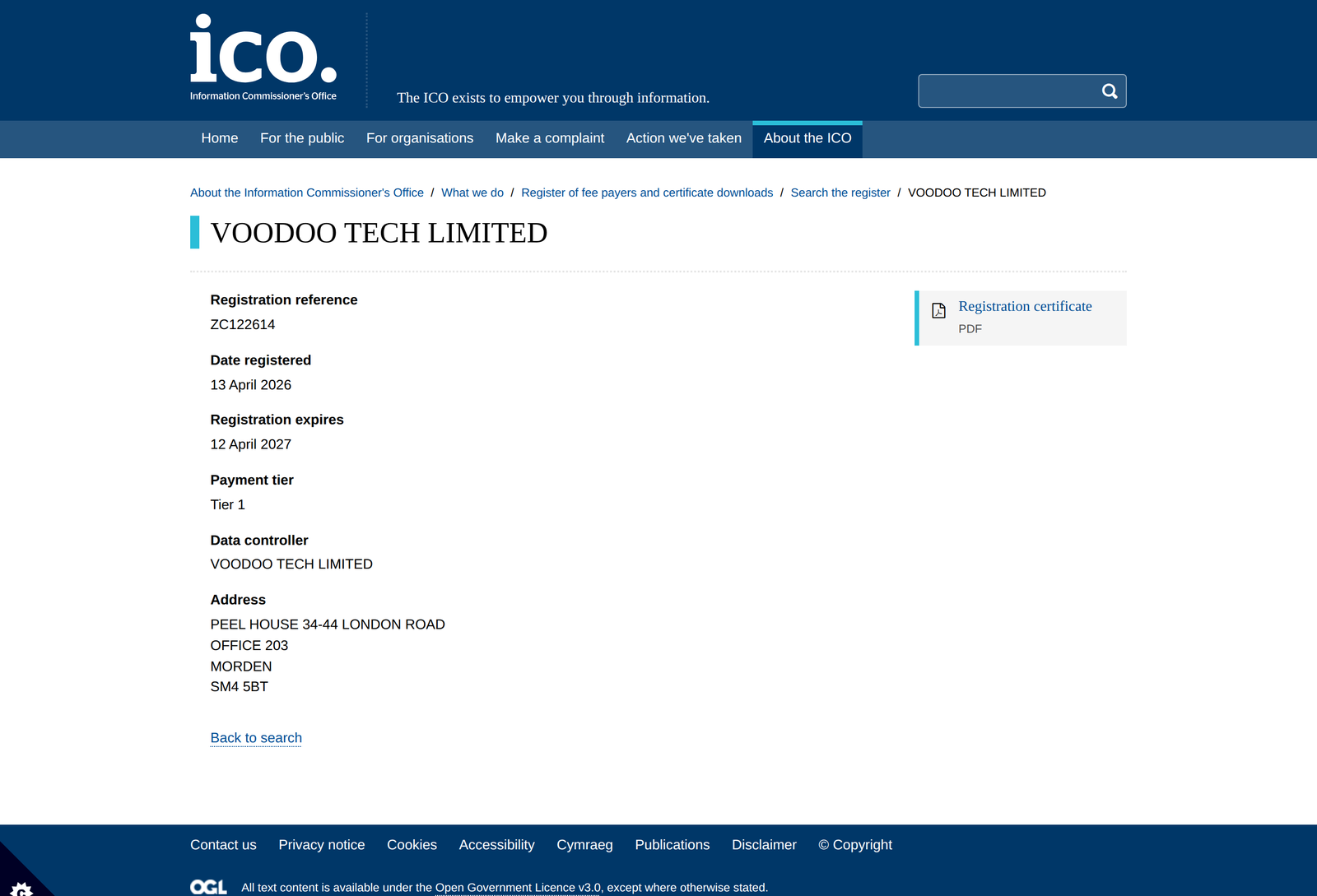
- Are they registered with the ICO? Any UK organisation processing personal data for business purposes generally has to be. The register is public and free to search.
- Where are the files processed, and for how long are they kept? The privacy policy should say, in plain terms.
- Do they ask for banking credentials? They should never need them. A converter operates on documents, not accounts.
- Does the tool show its working? A converter that displays the reconciliation is one you can audit, and reliable results are ones you can prove. A tool that just hands you a spreadsheet is asking you to take the extraction on faith.
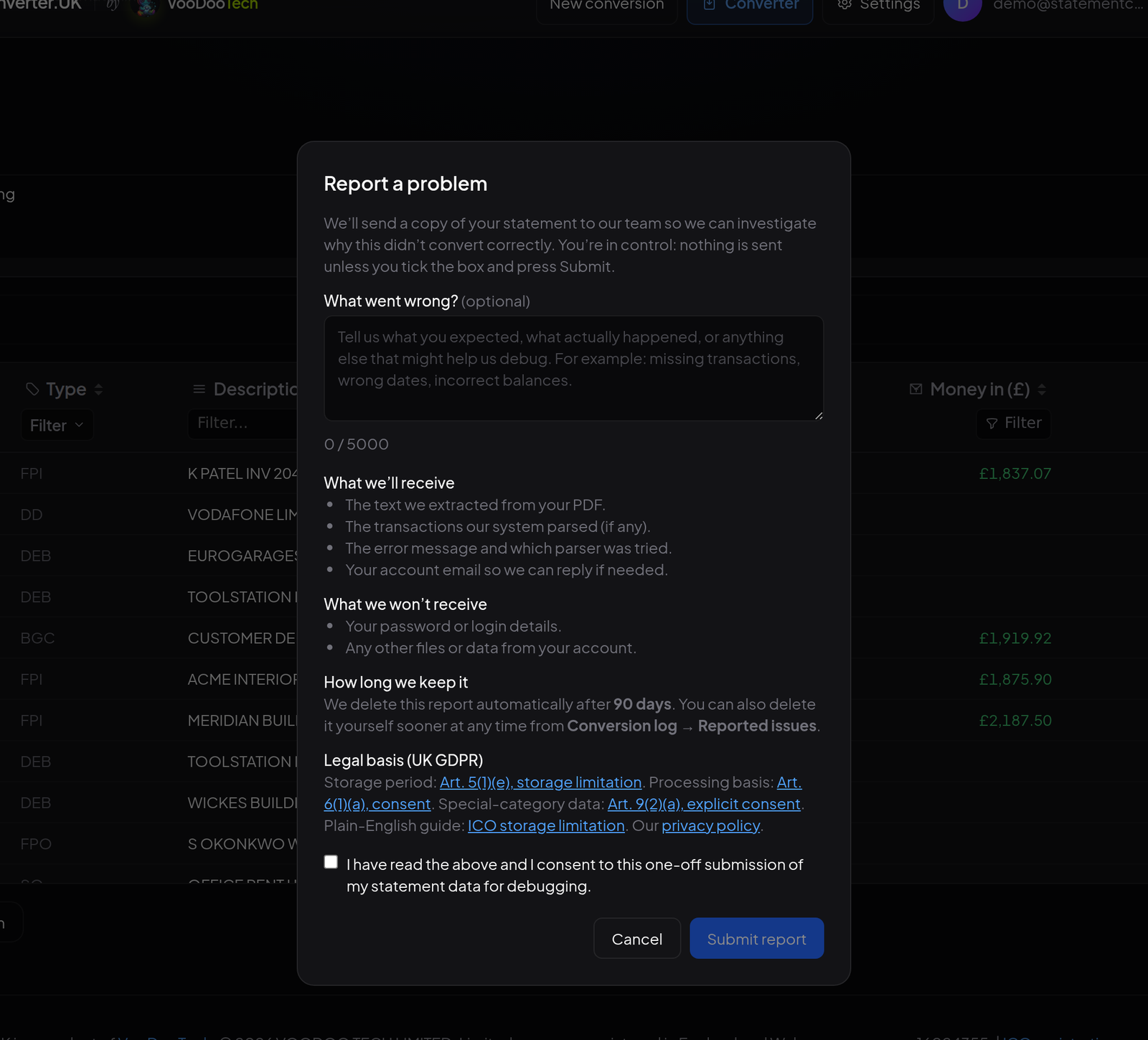
- Is there a way to report a bad conversion? Parsers break when banks change their statement templates. What matters is whether there is a route to tell someone.
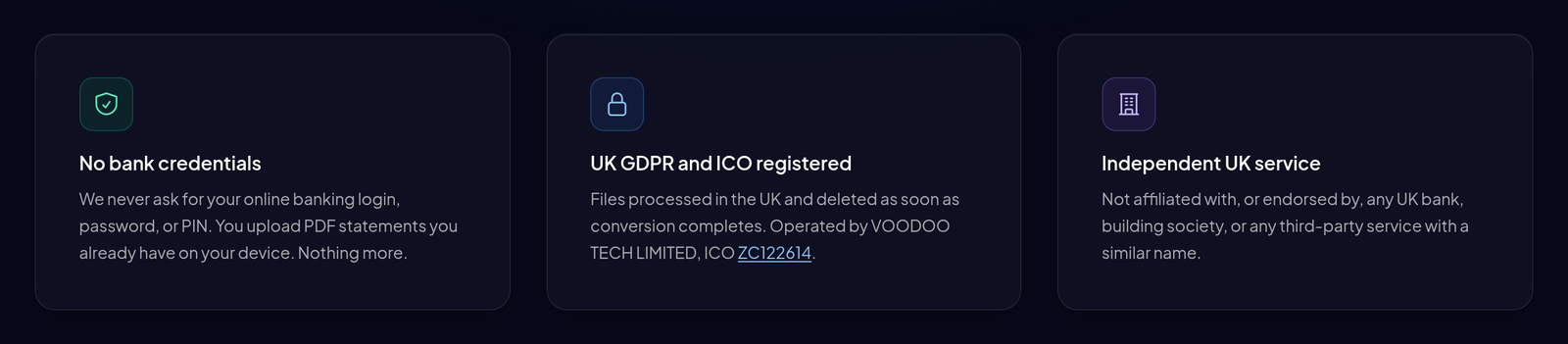
Specific claims are checkable claims, which is the point of making them. StatementConverter.UK names VOODOO TECH LIMITED as its operator, with Companies House number 16024355 and ICO registration ZC122614. Both are public records, so we looked them up:
Two further points are worth checking on any tool you shortlist. First, whether the service is independent of the banks whose statements it reads, and says so, because a converter implying an affiliation it does not have is a warning sign about everything else it tells you. Second, whether reporting a problem is a real workflow rather than a support email that disappears.
Common problems when you convert bank statement PDFs, and how to fix them
Scanned statements produce nothing. An image-only PDF has no text layer, so it needs OCR before it can be parsed. Check your tool supports it. If the source is a photograph, re-scan it flat at 300 dpi instead; OCR accuracy on a phone photo taken at an angle is poor no matter what is doing the reading.
The PDF is password protected. Statements emailed by a bank are often encrypted with your date of birth or postcode. Either remove the password in a PDF reader first, or use a converter that prompts you for it.
A credit card statement comes out with the signs reversed. Credit card balances work the opposite way to current accounts. QuickBooks in particular expects you to choose the credit card account type at import, not the bank account type.
The account holds more than one currency. Opening and closing balances are usually only printed for the primary currency, so the balance check will only cover that part. Convert and reconcile each currency separately.
The totals are out by one transaction. Nine times out of ten it is a row at a page break, or a multi-line description that has been treated as two entries. Sort by date, find the gap in the running balance, and compare that page of the PDF directly.
Frequently asked questions about converting bank statements to Excel
Can I convert a PDF bank statement to Excel?
Yes. Microsoft Excel for Microsoft 365 on Windows can import a PDF directly through Power Query, and a dedicated bank statement converter will produce a formatted spreadsheet in seconds. The important part is not the conversion but the check afterwards: confirm that opening balance plus money in minus money out equals the closing balance printed on the statement.
Can I convert a PDF bank statement to CSV as well?
Yes, and CSV is usually the better choice when the destination is accounting software rather than a person. Remember to delete any account details or period rows above the header line, because every major package expects the column headings in row 1.
How do I turn a bank statement into an Excel spreadsheet?
Four steps. Download the statement as a PDF from online banking, run it through a converter that recognises your bank's layout, check that opening balance plus money in minus money out equals the printed closing balance, then export to .xlsx. If you would rather not use a converter, Excel's Power Query can import the PDF directly, though you will spend longer repairing headers and dates.
What is the best PDF to Excel converter for bank statements?
The one that recognises your bank and proves its own arithmetic. Generic PDF to Excel converters treat a statement as an anonymous table and routinely put an amount in the wrong column, which is invisible until the accounts fail to reconcile. Judge candidates on four things: does it have a parser for your bank, does it show you that the extracted rows add up to the printed closing balance, does it name a real operator you can look up on the ICO register, and does it export in the shape your accounting software wants.
How accurate is a bank statement converter?
For a supported bank and a text-based PDF, a specialist converter should extract every line correctly, and you can prove it with the balance check. Accuracy drops on scanned documents, where OCR quality depends on the scan, and on unrecognised layouts. Treat any statement that does not reconcile as unverified until you have found the discrepancy.
Does it work with scanned PDFs?
Only if the tool includes OCR. A scanned statement is an image, so the text has to be recognised before it can be parsed. Spot-check the output more carefully than you would for a text-based PDF, particularly digits that OCR confuses, such as 5 and S or 1 and 7.
Can I convert several bank statements at once?
With a batch-capable tool, yes. The useful behaviour is grouping: statements from the same account should merge into one chronological ledger, with a column recording which source file each row came from, rather than arriving as a dozen disconnected sheets.
Is it safe to upload a bank statement to an online converter?
It depends entirely on the operator. Check that there is a named UK company behind it, that it appears on the ICO register, that the privacy policy states where files are processed and how long they are kept, and that it never asks for online banking credentials. If a practice is uploading client statements, that assessment is part of its own data protection obligations.
What does it cost to convert bank statements to Excel?
You can convert a PDF to Excel for free with general-purpose tools, but they are not built for bank statement layouts and rarely handle the money in and money out distinction correctly. Specialist converters are typically priced per page, in the region of one to six pence, often with a free allowance so you can test your own statements first. Weigh that against the time it takes to key a year of transactions by hand.
Do I still need an accountant if the conversion is automated?
Converting the statement is data entry, not accounting. Deciding what is allowable, how a transaction should be categorised, what counts as qualifying income under Making Tax Digital for Income Tax, and what HMRC will expect to see, is the part that changes your tax position. If you work in construction, the CIS deductions on your statements need handling differently again.
Where converting bank statements fits in your bookkeeping
Getting a statement out of PDF format and into a spreadsheet is the first ten minutes of a bookkeeping job, not the job itself. It matters more than it used to: quarterly reporting means doing it four times a year rather than once, as the first Making Tax Digital quarterly deadline made clear. Get it right and everything downstream is faster and the numbers are ready for analysis: the categorisation, the VAT return, the quarterly update, the year end. Get it wrong and every one of those steps inherits the error.
So the short version is this. Use a converter that understands your bank's layout rather than a generic PDF table extractor. Check the balance arithmetic before you do anything else with the file. Shape the CSV to your accounting software's requirements rather than fighting the importer. And before you upload a client's statement anywhere, spend thirty seconds confirming who is on the other end.
If you would rather hand the whole thing over, our bookkeeping service takes the statements as they come and returns reconciled books. If you are getting ready for the next stage of Making Tax Digital, our Making Tax Digital guide covers the thresholds and deadlines, and you are welcome to get in touch with a question about your own situation.